Connect external calendars
Learn how to connect external calendars to your accommodation in Homadu. In this article, we explain how to add an ICS/iCal link, how to export your Homadu calendar to other platforms, and what to keep in mind when synchronizing availability.
What are external calendars?
External calendars allow you to better synchronize the availability of your accommodation with other booking platforms. This helps prevent the same period from accidentally being booked twice.
Homadu uses ICS/iCal connections for this purpose. These are calendar links that allow bookings and blocked periods to be exchanged between systems.
What can you do with external calendars?
There are two possible directions:
Import an external calendar into Homadu
This allows Homadu to retrieve occupied periods from an external platform.
Export your Homadu calendar to an external platform
This gives an external party access to your Homadu availability.
Please note: Homadu does not import complete reservations, guest details, or payments this way. The connection is intended to improve availability synchronization.
Add an external calendar
Do you want to connect a calendar from an external platform to Homadu? You can add an external calendar. Go to your accommodation and open the External calendars section.
Click at the bottom right on:
Add calendar
The Add external calendar window will then open.
Enter the following details:
Calendar name
Give the calendar a recognizable name.
Examples:
- Airbnb
- Booking.com
- Vrbo
- Own blocked periods
- Spain holiday home calendar
Import URL (ICS)
Paste the ICS or iCal link from the external platform here.
You can usually find this link in the calendar or availability section of the external platform. Homadu uses this URL to periodically retrieve the ICS feed and update availability.
Then click Save.
View connected calendars
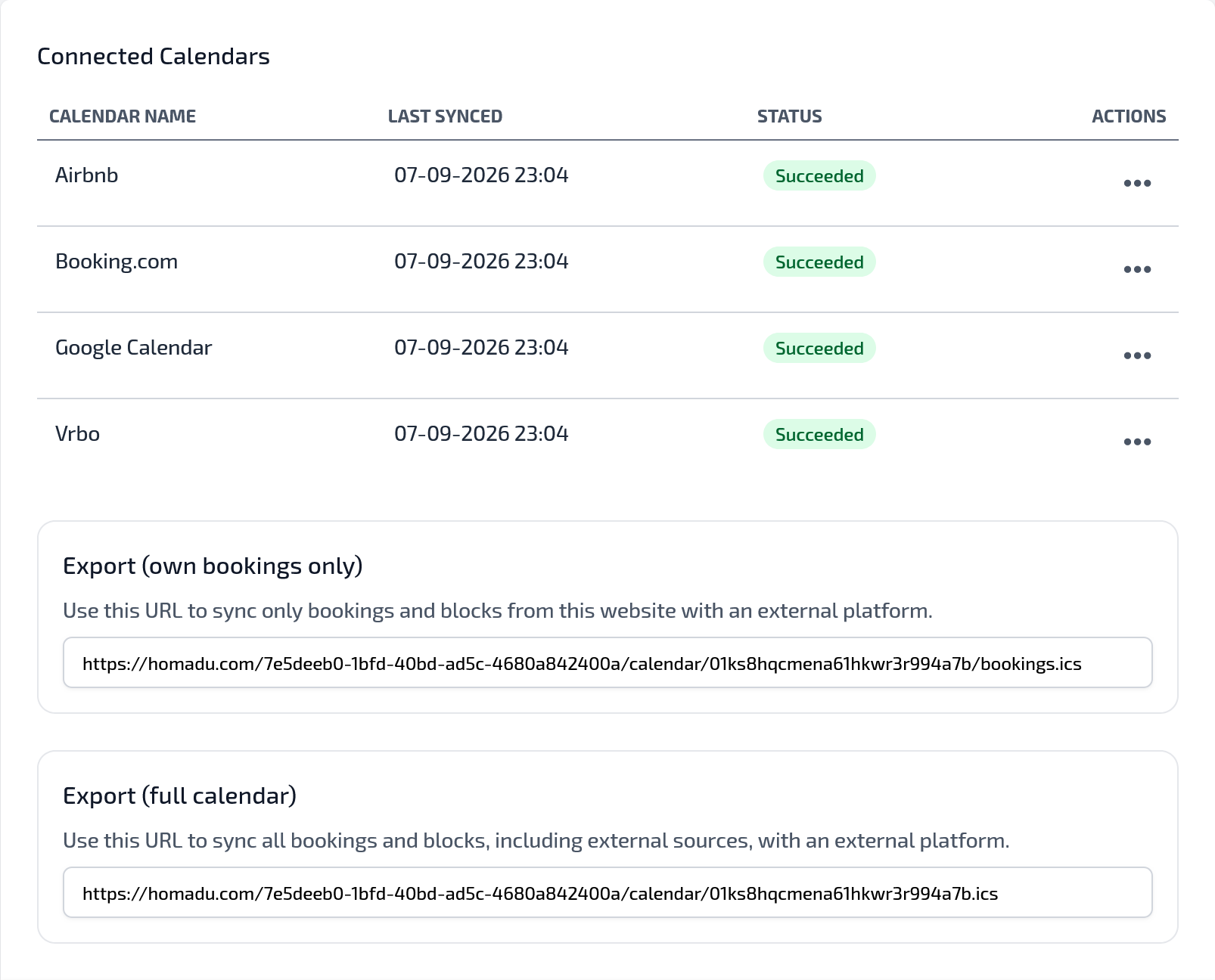
After adding it, the calendar will appear in the overview under Connected calendars.
In this overview, you can see, among other things:
Calendar name
The name you gave the calendar.
Last synchronized
The time when Homadu last retrieved the calendar.
Status
Whether the calendar is active or something may need to be checked.
Actions
Here you can manage the calendar.
If no calendar has been connected yet, you will see a message stating that no external calendars have been added yet.
Export Homadu calendar
In addition to importing external calendars, you can also export your Homadu calendar to other platforms.
You will find two export links for this on the page.
Export: own bookings only
Use this URL when you only want to synchronize bookings and blocked periods from Homadu with an external platform.
This export therefore only contains availability that comes directly from this website.
Use this option, for example, when you want to let an external platform know which periods have been booked or blocked through Homadu.
Export: full calendar
Use this URL when you want to synchronize all bookings and blocked periods, including external sources that are already connected in Homadu.
This export therefore provides an external platform with a more complete overview of availability.
Use this option when the external platform needs to take into account both your Homadu bookings and the availability received from other connected calendars.
Which export link should I use?
Usually use Export: own bookings only when you want to connect Homadu to an external booking platform. This prevents external calendar information from being forwarded unnecessarily.
Use Export: full calendar only when you deliberately want to share all available calendar information, including imported external blocked periods.
Important to know
External calendar connections are synchronized periodically. This means that changes may not always be visible immediately.
Therefore, regularly check whether:
- the ICS link is still working;
- the calendar has been synchronized successfully;
- blocked dates are displayed correctly;
- you are using the correct calendar link for each external platform.
Calendar connections help prevent double bookings, but they do not replace a full channel manager.
Tips for a good setup
Give each connected calendar a clear name, for example Airbnb - Villa Mar de Sol or Booking.com - Apartment 1.
Connect a separate calendar for each external platform. This keeps things organized and allows you to see more quickly where a blocked period comes from.
After adding a calendar, always check that the occupied periods are displayed correctly in your availability.