Manage email communication
Email templates allow you to automate important communication with guests. You can view, add and manage existing templates. By using templates effectively, guests receive the right information at the right time, while you save time with every booking.
Manage email templates
With email templates, you can set up automated messages that are sent to guests around their stay. This allows you to inform guests at the right time, for example before check-in, during their stay, at check-out or afterwards with a review request.
These templates help you communicate professionally without having to send every email manually.
Where can you find the email templates?
In your accommodation dashboard, go to Email templates. On this page, you can see which automated emails are currently active and which templates are still available to add.
The page consists of two sections:
Current templates
Here you can see the email templates that are already linked to this accommodation.
Available templates
Here you can see templates that you can still view or add.
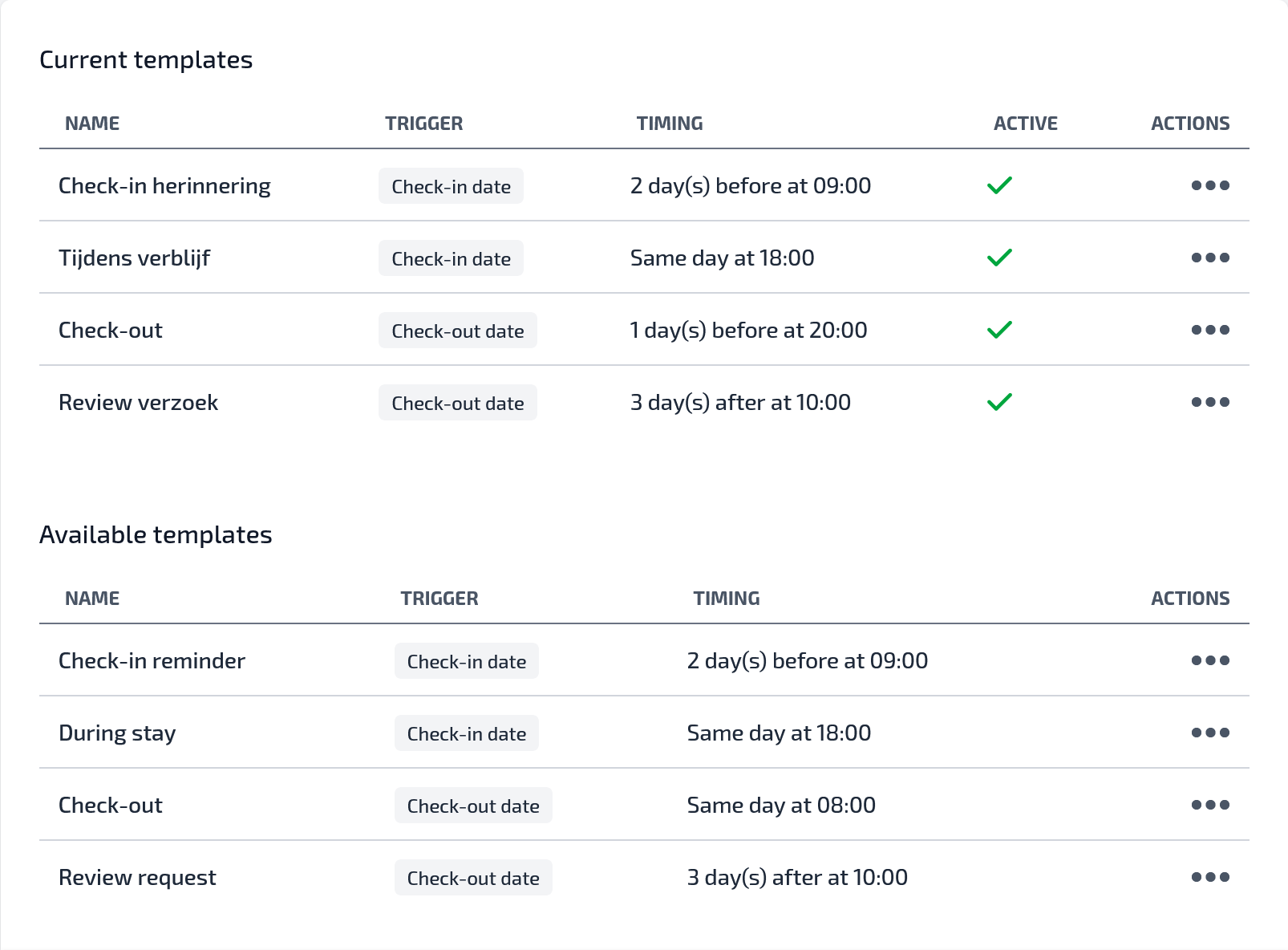
Current templates
In the Current templates overview, you can see the following for each template:
- Name: the name of the email template.
- Trigger: the event the email is based on, for example the check-in date or check-out date.
- Timing: exactly when the email is sent.
- Active: whether the template is currently active.
- Actions: additional options for the template.
View available templates
Under Available templates, you will find email templates that you can use for your accommodation.
Click the three dots next to a template to open the available actions. Here you can choose, for example:
View preview
First see what the email looks like before using it.
Use template
Add the template to your current email templates.
This is useful when you first want to check what text the guest will receive and whether the template suits your accommodation.
Add a new template
Want to add a new email template? Click the Add template button at the bottom right.
You can then set up a new template or use an available template, depending on the options available within your account.
When are emails sent?
Automated emails are sent based on the guest's booking details. The configured trigger and timing are used to determine when they are sent.
For example:
A check-in reminder with the timing 2 days before at 09:00 is automatically sent two days before the check-in date at 09:00.
A review request with the timing 3 days after at 10:00 is automatically sent three days after the check-out date at 10:00.
Tips for good email templates
Use clear and friendly wording. Include practical information such as arrival time, departure rules, contact details, parking options or other important details for the stay.
Keep emails short and easy to scan. Guests often read practical information shortly before or during their stay, so make sure the most important points are easy to find.
Always check the preview before actively using a template. This ensures that the content is a good fit for your accommodation and your way of communicating.